
DNS Server Not Responding: How to Fix It (Windows, Android, Router Guide)
By Team TechMedicHub
Published: April 12, 2026
Last Updated: April 13, 2026
You open your browser, type in a website, and instead of loading the page, you get an error: “DNS Server Not Responding.” Your WiFi icon shows a connection. Everything looks normal. But nothing loads.
This error can be frustrating because your internet seems connected but nothing works. The good news is that this is almost always fixable, and you usually do not need any technical background to solve it.
In this guide, you will learn what the DNS Server Not Responding error actually means, why it happens, and exactly how to fix it step by step on Windows, Android, and your router. (This guide works for Windows 10, Windows 11, Android phones, and most home routers)
Quick Summary
If you see “DNS Server Not Responding”, try these fixes first:
- Restart your router
- Flush DNS cache
- Change DNS server to 8.8.8.8
- Reset network settings
Table of Contents
What Does “DNS Server Not Responding” Mean?
DNS stands for Domain Name System. Think of it as the internet’s phone book.
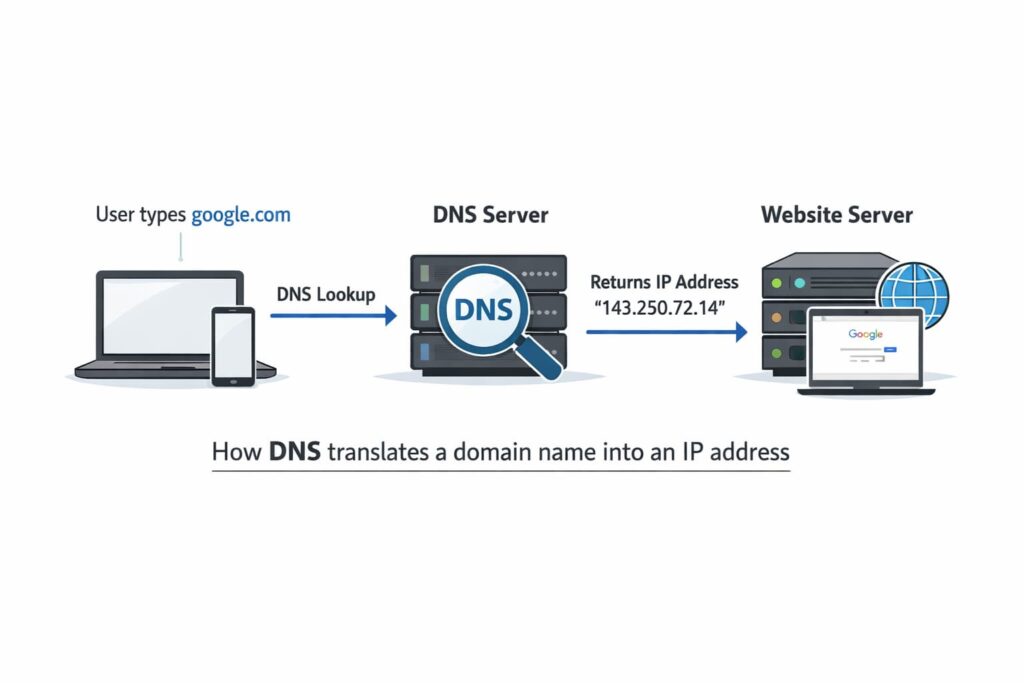
Image above shows how DNS translates a domain name into an IP address so your browser can load a website. (Illustration by TechMedicHub.)
When you type a website address like google.com into your browser, your device does not actually understand that name. It needs a numeric IP address (like 142.250.72.14) to connect. A DNS server is the middleman that translates the website name into that IP address.
When you see “DNS Server Not Responding,” it means your device tried to contact a DNS server to look up a website address, but the server did not reply. Without that translation, your browser has no idea where to go, so nothing loads.
The important thing to understand is that your internet connection might be perfectly fine. The problem is specifically with the DNS lookup process, not necessarily with your WiFi or ISP connection itself.
Common Causes of DNS Server Not Responding
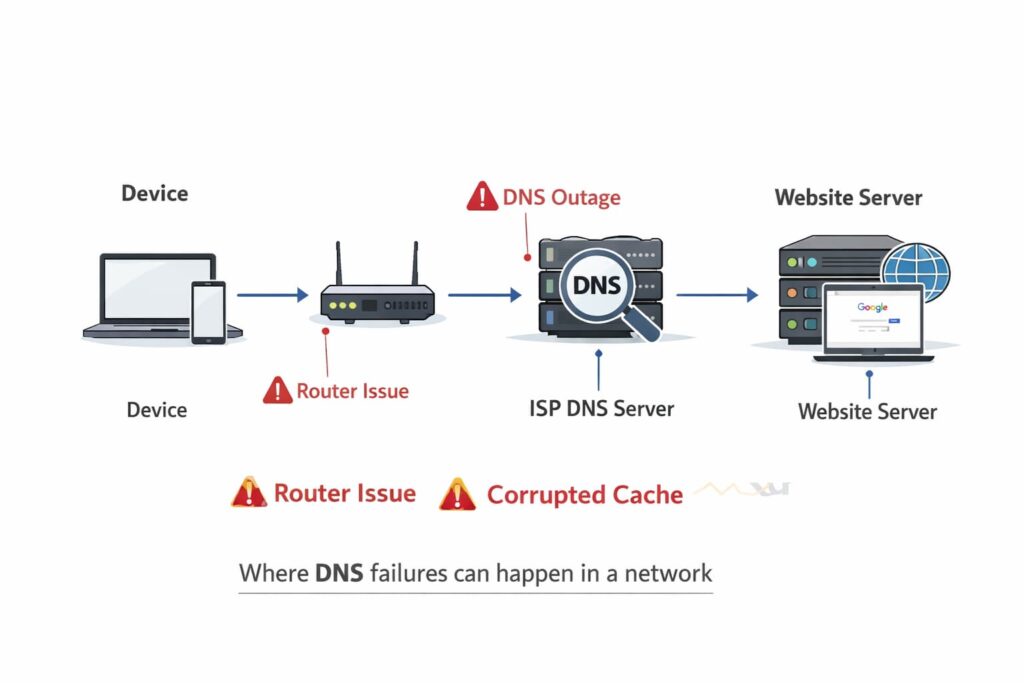
Image above shows common points where DNS failures can occur in the internet connection chain. (Illustration by TechMedicHub.)
Before jumping into fixes, here is a quick look at why this error happens. Understanding the cause helps you pick the right fix faster.
ISP DNS server failure — Your internet provider runs its own DNS servers, and these can go down, become overloaded, or experience temporary outages. When this happens, every device on your network loses the ability to load websites.
Router DNS issues — Your router passes DNS requests from your devices to the DNS server. If your router has been running for a long time without a restart, or if its DNS settings are misconfigured, it can fail to forward those requests properly.
Corrupted DNS cache — Your device stores recent DNS lookups in a local cache to speed up browsing. If this cache becomes outdated or corrupted, your device may try to use bad data instead of requesting a fresh lookup, which causes failures.
Device network settings — Incorrect network configuration, outdated WiFi drivers, or a glitched network adapter on your computer or phone can prevent DNS requests from going out at all.
Firewall or antivirus interference — Some security software can block DNS traffic on port 53, either intentionally or by accident. This stops your device from reaching any DNS server.
IPv6 compatibility problems — If your network or ISP does not fully support IPv6, having it enabled can sometimes cause DNS lookups to fail or time out.
What to Try First (Fastest Fix Order)
If you are in a hurry, try these steps in this order before going through the full guide:
- Restart your router and modem
- Restart your computer or phone
- Flush DNS cache (Windows)
- Change DNS server to Google DNS (8.8.8.8)
- Reset network settings
If those do not work, follow the detailed steps below for your specific device.
How to Fix DNS Server Not Responding on Windows
These fixes work on both Windows 10 and Windows 11. Start from the top and work your way down.
1. Restart Your Router and Computer
This sounds basic, but it solves DNS problems more often than you might expect. Restarting clears temporary glitches in both your router’s DNS forwarding and your computer’s network stack.
- Unplug your router from power. If you have a separate modem, unplug that too.
- Wait 30 seconds.
- Plug the modem back in first and wait for its lights to stabilize (about 1–2 minutes).
- Plug the router back in and wait for it to fully boot.
- Restart your computer.
- Try loading a website.
2. Flush the DNS Cache
Your computer stores DNS records locally so it does not have to look up every website from scratch. If this cache gets corrupted or outdated, it can cause DNS failures even when the DNS server itself is working fine.
- Search for cmd in the Start menu.
- Right-click Command Prompt and select Run as administrator.
- Type the following command and press Enter:
ipconfig /flushdns
- You should see a message saying the DNS cache was successfully flushed.
- Try loading a website again.
3. Change Your DNS Server to Google DNS
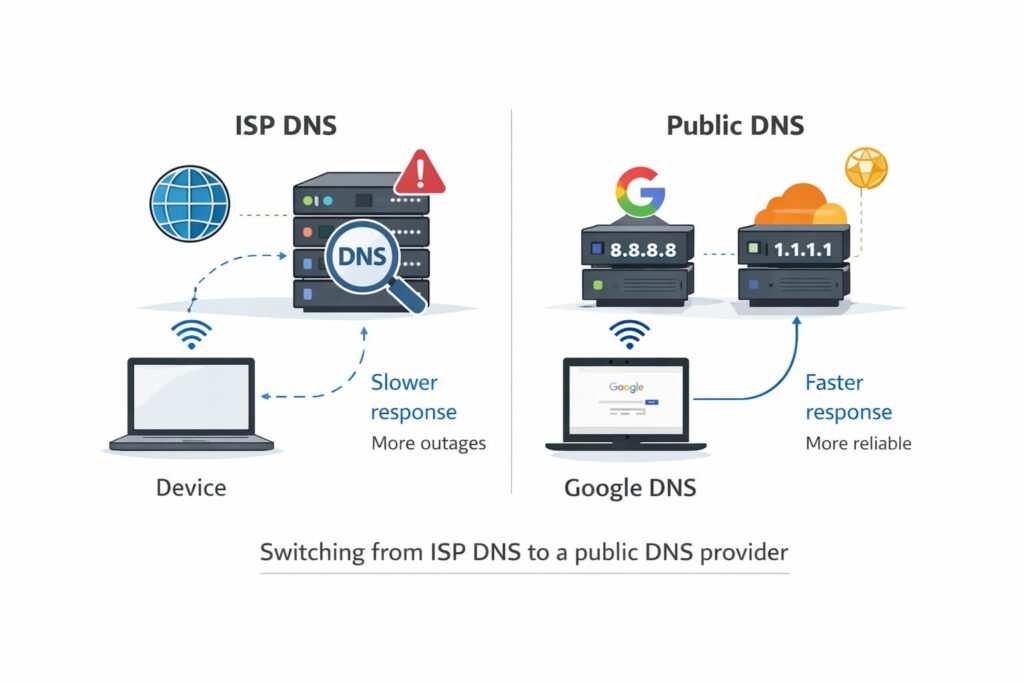
Image above shows Public DNS services like Google DNS and Cloudflare DNS are often faster and more reliable than ISP DNS. (Illustration by TechMedicHub.)
By default, your computer uses whatever DNS server your ISP provides. If that server is slow, overloaded, or down, switching to a public DNS server like Google DNS can fix the problem immediately.
- Press Windows + R, type
ncpa.cpl, and press Enter. - Right-click your active network connection (WiFi or Ethernet) and select Properties.
- Select Internet Protocol Version 4 (TCP/IPv4) and click Properties.
- Select Use the following DNS server addresses.
- Enter:
- Preferred DNS server: 8.8.8.8
- Alternate DNS server: 8.8.4.4
- Click OK, close all windows, and test your connection.
If you prefer an alternative, Cloudflare DNS uses the addresses 1.1.1.1 and 1.0.0.1.
4. Reset the Network Adapter
Disabling and re-enabling the network adapter forces Windows to reinitialize the connection, which can clear stuck DNS states.
- Press Windows + R, type
ncpa.cpl, and press Enter. - Right-click your WiFi or Ethernet adapter and select Disable.
- Wait 10 seconds.
- Right-click it again and select Enable.
- Wait for the connection to re-establish and test.
5. Disable IPv6
If your network or ISP does not fully support IPv6, having it enabled can interfere with DNS resolution. Disabling it is a safe diagnostic step that will not break anything.
- Press Windows + R, type
ncpa.cpl, and press Enter. - Right-click your active network adapter and select Properties.
- Uncheck the box next to Internet Protocol Version 6 (TCP/IPv6).
- Click OK and test your connection.
If this fixes the error, you can leave IPv6 disabled. Most home networks run entirely on IPv4 without any issues.
How to Fix DNS Server Not Responding on Android
If you see DNS-related errors on your Android phone, or if websites refuse to load even though WiFi shows as connected, try these fixes in order.
1. Toggle Airplane Mode On and Off
This is the fastest way to force your phone to drop all network connections and re-establish them from scratch, including DNS settings.
- Swipe down from the top of your screen to open Quick Settings.
- Tap the Airplane Mode icon to turn it on.
- Wait 10 seconds.
- Tap Airplane Mode again to turn it off.
- Wait for your phone to reconnect to WiFi and test by loading a website.
2. Forget and Reconnect to the WiFi Network
A saved WiFi profile can store outdated DNS or IP configuration. Forgetting the network and reconnecting forces your phone to request fresh settings from the router.
- Go to Settings > Network & internet > Wi-Fi (or Settings > Connections > Wi-Fi on Samsung devices).
- Tap on your connected WiFi network.
- Tap Forget or Forget network.
- Tap the same network again, enter your WiFi password, and reconnect.
- Test your connection.
3. Change the Private DNS Setting
Android 9 and later versions let you set a custom DNS provider directly, bypassing whatever DNS your router or ISP assigns.
- Go to Settings > Network & internet > Private DNS.
- Select Private DNS provider hostname.
- Enter: dns.google
- Tap Save.
- Test by loading a website.
You can also use Cloudflare’s DNS by entering one.dot.one.dot.one.dot.one (1dot1dot1dot1.cloudflare-dns.com) as the hostname.
4. Reset Network Settings
If nothing else works, resetting your phone’s network settings clears all WiFi passwords, Bluetooth pairings, VPN configurations, and mobile data settings. This gives your phone a clean network slate.
- Go to Settings > System > Reset options.
- Tap Reset Wi-Fi, mobile & Bluetooth (or Reset network settings).
- Confirm the reset.
- Reconnect to your WiFi network and test.
This will not delete your photos, apps, or personal data. It only resets network-related settings.
Note: If your WiFi is connected but nothing loads on your Android device, you may also be experiencing a broader connectivity problem. See our full troubleshooting guide on adroid devices: WiFi Connected but No Internet on Android: 10 Fixes That Actually Work.
How to Fix DNS Server Not Responding on Your Router
If every device on your network is getting DNS errors, the problem is almost certainly with your router or your ISP, not with individual devices.
1. Restart Your Router
Routers run continuously and can develop memory issues, stale connection tables, or DNS forwarding glitches over time. A simple restart clears all of these.
- Unplug your router from power.
- If you have a separate modem, unplug that too.
- Wait at least 30 seconds.
- Plug the modem back in first and wait for its lights to stabilize.
- Plug the router back in and wait for it to fully boot.
- Test your internet on any device.
If restarting your router does not fix the problem, you may also be dealing with a broader connectivity issue. See our guide on WiFi Connected but No Internet.
2. Change Your Router’s DNS Settings
Instead of relying on your ISP’s DNS servers (which may be the source of the problem), you can configure your router to use public DNS servers. This change applies to every device on your network automatically.
- Open your browser and go to your router’s admin page. This is usually 192.168.0.1 or 192.168.1.1 (check the label on your router).
- Log in with your router’s admin credentials.
- Find the DNS settings — this is typically under WAN settings, Internet settings, or DHCP settings depending on your router brand.
- Change the primary DNS to 8.8.8.8 and the secondary DNS to 8.8.4.4.
- Save the settings and restart the router.
3. Update Your Router’s Firmware
Outdated router firmware can contain bugs that affect DNS forwarding. Most routers let you check for updates through the admin panel.
- Log into your router’s admin page.
- Look for a Firmware Update, System Update, or Administration section.
- Check for available updates and install if one is available.
- The router will restart automatically after the update.
If you are not sure how to update firmware on your specific router, check the support page for your router brand (TP-Link, ASUS, Netgear, etc.).
Advanced Fixes
If the basic fixes above did not solve the problem, try these more technical solutions.
Reset the Windows Network Stack
This is the most thorough network reset available on Windows. It clears the DNS cache, resets the Winsock catalog (which handles network communication), and rebuilds IP configuration from scratch.
- Open Command Prompt as administrator.
- Run the following commands one at a time, pressing Enter after each:
ipconfig /flushdns
ipconfig /release
ipconfig /renew
netsh winsock reset
netsh int ip reset
- Restart your computer.
- Reconnect to WiFi and test.
After this reset, any custom network settings you had will be cleared, so you may need to re-enter WiFi passwords or reconfigure VPN connections.
Try Different Public DNS Providers
If Google DNS does not fix the issue, other public DNS providers might work better depending on your location and ISP.
| Provider | Primary DNS | Secondary DNS |
|---|---|---|
| Google Public DNS | 8.8.8.8 | 8.8.4.4 |
| Cloudflare DNS | 1.1.1.1 | 1.0.0.1 |
| Quad9 | 9.9.9.9 | 149.112.112.112 |
All three are free, reliable, and well-maintained. Cloudflare is known for speed, Quad9 adds an extra layer of security by blocking known malicious domains, and Google Public DNS is the most widely used.
Check for ISP Outages
If restarting your router and changing DNS servers does not help, the issue may be with your internet service provider.
- Use your phone’s mobile data to check your ISP’s website or social media pages for outage reports.
- Search for “[your ISP name] outage” to see if others are reporting issues.
- Call your ISP’s support line and ask if there is a known problem in your area.
- Ask them to refresh or re-provision your connection remotely.
If the outage is confirmed, there is nothing you can do except wait. ISP-level DNS failures typically resolve within a few hours.
Frequently Asked Questions
What causes DNS Server Not Responding?
The most common causes are a temporary problem with your ISP’s DNS servers, a router that needs restarting, corrupted DNS cache on your device, or firewall software blocking DNS traffic. In most cases, restarting your router or changing to a public DNS server like Google DNS (8.8.8.8) fixes it.
If you keep seeing the DNS server not responding error, it usually means your device cannot reach a DNS lookup service.
Is Google DNS (8.8.8.8) safe to use?
Yes. Google Public DNS is one of the most widely used DNS services in the world. It is free, fast, and does not block or filter content. Google states that its public DNS service does not permanently store personally identifiable information. Cloudflare DNS (1.1.1.1) is another trusted alternative that emphasizes privacy.
Can a router cause DNS errors?
Yes. Your router acts as the middleman between your devices and your ISP’s DNS servers. If the router has been running for a long time, its internal memory can fill up or its DNS forwarding table can become stale. Restarting the router or changing its DNS settings to a public provider often fixes this.
Does restarting the router fix DNS problems?
In many cases, yes. Restarting the router clears its memory, resets its DNS cache, and forces it to re-establish a connection to your ISP. This resolves the majority of temporary DNS failures. If restarting does not help, the problem is likely with the DNS server itself, and switching to Google DNS or Cloudflare DNS is the next step.
Why does DNS Server Not Responding only happen on one device?
If other devices on the same network work fine, the problem is specific to that one device. Common causes include a corrupted local DNS cache, outdated network drivers, firewall interference, or incorrect network settings. Flushing the DNS cache and resetting network settings on that device usually fixes it.
If the DNS server not responding issue appears on multiple devices, the problem is likely your router or ISP.
What is the difference between DNS Server Not Responding and no internet?
“DNS Server Not Responding” means your internet connection may be working, but the service that translates website names into IP addresses is unreachable. “No internet” means there is no active data connection at all. The two problems can look the same because both prevent websites from loading, but they have different causes and different fixes. If your WiFi shows connected but nothing loads at all, check our guide on WiFi Connected but No Internet for additional solutions.
Conclusion
The “DNS Server Not Responding” error almost always comes down to one of a few things: your ISP’s DNS server is temporarily down, your router needs a restart, your device has a corrupted DNS cache, or your security software is blocking DNS traffic.
Start with the simplest fix — restart your router and flush your DNS cache. If that does not work, switch your DNS server to Google DNS (8.8.8.8) or Cloudflare (1.1.1.1). For device-specific issues, resetting network settings usually clears things up.
In most cases, one of the steps in this guide will get you back online within a few minutes.