
WiFi Connected but No Internet on iPhone: 10 Fixes That Actually Work
By Team TechMedicHub
Published: April 20, 2026
Last Updated: April 20, 2026
Your iPhone shows the WiFi icon at the top of the screen. The network looks connected in Settings. But Safari will not load any websites, apps refuse to sync, and you might even see a “No Internet Connection” message right under your WiFi network name.
This is a common issue on iPhones running iOS 15, 16, 17, and iOS 18. It can happen on any model — iPhone 11, 12, 13, 14, 15, or the newest iPhone 16 — and it usually has nothing to do with the hardware. The cause is almost always a DNS failure, a misbehaving VPN, a corrupted saved network profile, or a router that needs restarting.
This guide walks you through 10 fixes in order from the quickest to the most advanced. If you are also troubleshooting other devices on the same network, our main guide covers everything together: WiFi Connected but No Internet (Android, Windows, and Router Fix Guide).
Quick Fix Summary
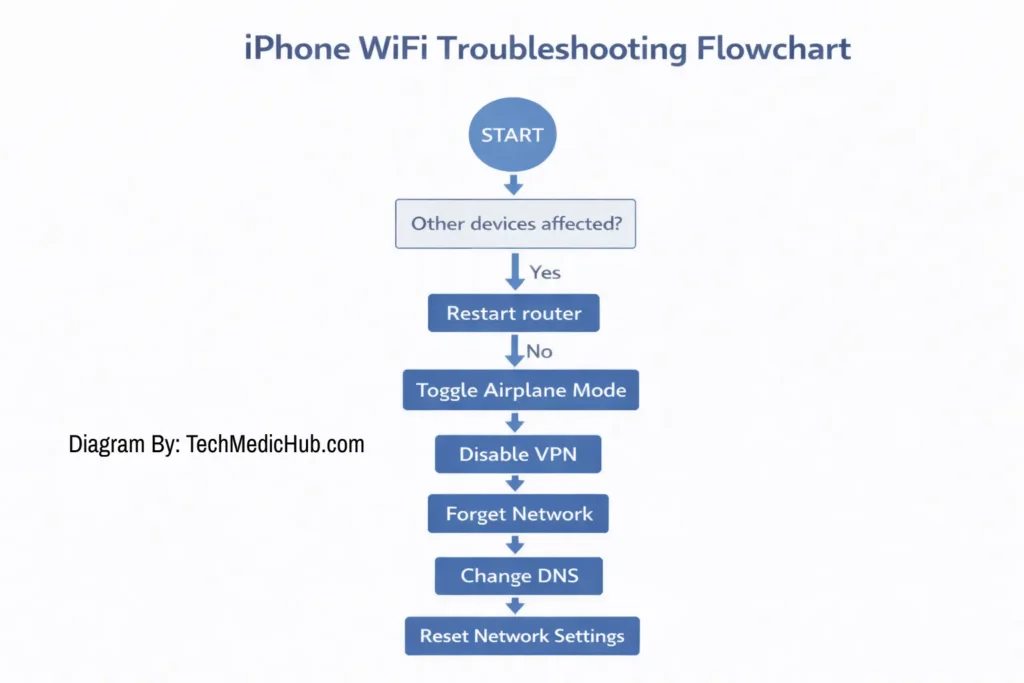
If your iPhone shows WiFi connected but no internet, try these fixes in order. Most users solve the issue within the first few steps:
- Check other devices on the same WiFi to see if the problem is the router or your iPhone.
- Restart your router and iPhone to clear temporary network glitches.
- Toggle Airplane Mode on and off to reset wireless connections.
- Disable any active VPN that might be blocking traffic.
- Forget and reconnect to the WiFi network to refresh saved settings.
- Change DNS to Google DNS (8.8.8.8) or Cloudflare (1.1.1.1).
- Reset Network Settings if the problem persists.
- Update iOS to fix potential networking bugs.
If multiple devices have no internet, the issue is likely with your router or ISP, not your iPhone.
Table of Contents
Why Does iPhone Say Connected to WiFi but No Internet?
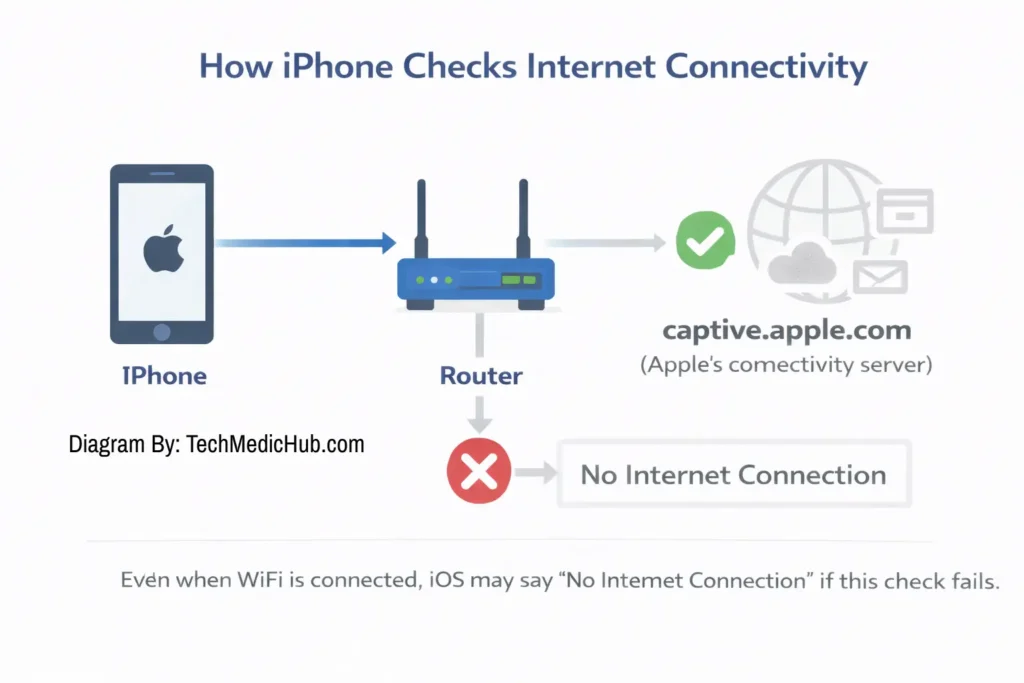
When your iPhone connects to WiFi, it establishes a link with your router. That part usually works without issues. But iOS does not stop there — it also performs a connectivity test by trying to reach a domain called captive.apple.com. This is Apple’s way of confirming that your phone actually has internet access, not just a router connection.
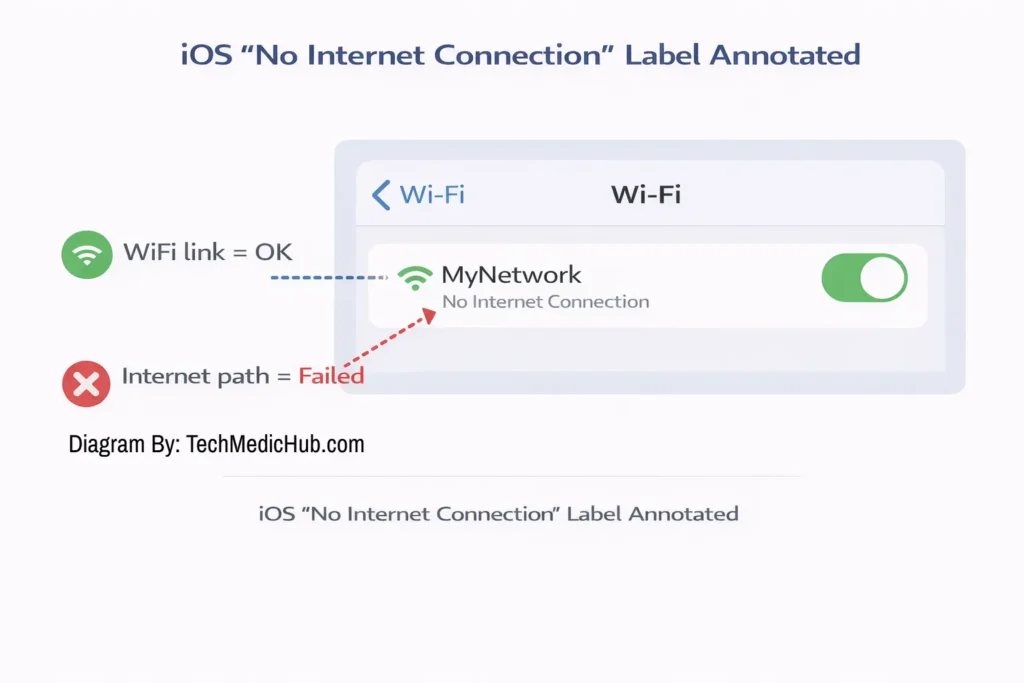
If that test fails, iOS labels the network as “No Internet Connection” under the WiFi name in Settings. The WiFi link is fine; the break is somewhere between your router and the internet.
Here are the most common causes:
DNS resolution issues — Your iPhone cannot translate website names like google.com into IP addresses. This happens when the DNS cache has bad entries or when the DNS server your iPhone is using is unreachable. The connection is technically working, but your phone cannot find any website.
Wi-Fi Assist behavior — When Wi-Fi Assist is enabled, iOS automatically switches to cellular data if it thinks the WiFi connection is too weak. This can create confusion about which connection is actually active and sometimes interferes with normal WiFi traffic.
Misconfigured manual DNS — If you previously set a manual DNS server that is now unreachable or typed incorrectly, your phone will connect to WiFi but fail to load any websites.
VPN or proxy interference — VPN apps like NordVPN, ExpressVPN, Surfshark, and Proton VPN can block internet traffic when their servers are down, their certificates are outdated, or their configuration conflicts with iOS updates. This has been a particularly common problem after iOS 18.
Router or DHCP problems — The router may fail to assign your iPhone a proper IP address or gateway. Without these, your phone cannot communicate with the internet even though the WiFi link is active.
Outdated iOS or carrier settings — Connectivity bugs can appear after major iOS updates, especially if carrier settings are out of date.
Router compatibility issues — Some older routers using outdated encryption standards or unusual configurations can cause iPhones to connect without internet access.
10 Fixes for WiFi Connected but No Internet on iPhone
Work through these in order. Start with the quick checks, and move to the more involved fixes only if the simpler steps do not solve the problem.
Fix 1 — Check If Other Devices Have Internet
Before spending time troubleshooting your iPhone, check whether the problem is actually with your phone or with the network itself.
Connect another device — your laptop, another phone, or a tablet — to the same WiFi network and try loading a website.
- If other devices also have no internet, the issue is your router or ISP. Restart the router (see Fix 2) and contact your ISP if the problem continues.
- If other devices work fine, the issue is specific to your iPhone. Continue with the fixes below.
This one-minute check saves you from troubleshooting the wrong device entirely.
Fix 2 — Restart Your Router and iPhone
Most temporary network glitches are cleared by a simple restart. This is the single most effective fix if the router has been running for days or weeks without a reboot.
Restart the router:
- Unplug your router from power. If you have a separate modem, unplug that too.
- Wait 30 seconds.
- Plug the modem back in and wait for its lights to stabilize (1–2 minutes).
- Plug the router back in and wait for it to fully boot.
Restart your iPhone:
On iPhone 8 and later (including iPhone 16):
- Press and release the Volume Up button.
- Press and release the Volume Down button.
- Press and hold the Side button until you see the Apple logo.
Or simply use Settings > General > Shut Down, then press the Side button to power back on.
Fix 3 — Toggle Airplane Mode and WiFi
Airplane Mode shuts down all wireless radios on your iPhone at once. Turning it back off forces iOS to re-establish every connection from scratch, which clears stuck network states.
- Swipe down from the top-right corner of your screen to open Control Center.
- Tap the Airplane Mode icon (it turns orange when active).
- Wait 10 seconds.
- Tap it again to turn Airplane Mode off.
- Also toggle WiFi off and back on if needed.
This often fixes “connected but no internet” issues caused by a temporary handshake error between your iPhone and the router.
Fix 4 — Disable Wi-Fi Assist
Wi-Fi Assist is an iOS feature that automatically switches to cellular data when your WiFi signal is weak. In some situations it can cause confusion — your iPhone appears connected to WiFi but is actually using (or trying to use) cellular data for certain apps, which creates strange “no internet” behavior.
- Go to Settings > Cellular (or Settings > Mobile Data).
- Scroll all the way to the bottom of the list.
- Turn off Wi-Fi Assist.
You can always re-enable it later. For troubleshooting purposes, turning it off ensures your phone is actually using WiFi and not silently falling back to cellular.
Fix 5 — Forget and Reconnect to the WiFi Network
Your iPhone stores a profile for each WiFi network it has connected to, including DNS settings, IP configuration, and security details. Over time this saved profile can become corrupted. Forgetting the network and reconnecting forces iOS to request a completely fresh set of settings from the router.
Important: Make sure you know your WiFi password before doing this. You will need to enter it again.
- Go to Settings > Wi-Fi.
- Tap the (i) info button next to your connected network name.
- Tap Forget This Network and confirm.
- Return to the WiFi screen and tap your network name again.
- Enter the WiFi password and reconnect.
- Test by opening a website in Safari.
Fix 6 — Check VPN and Proxy Settings
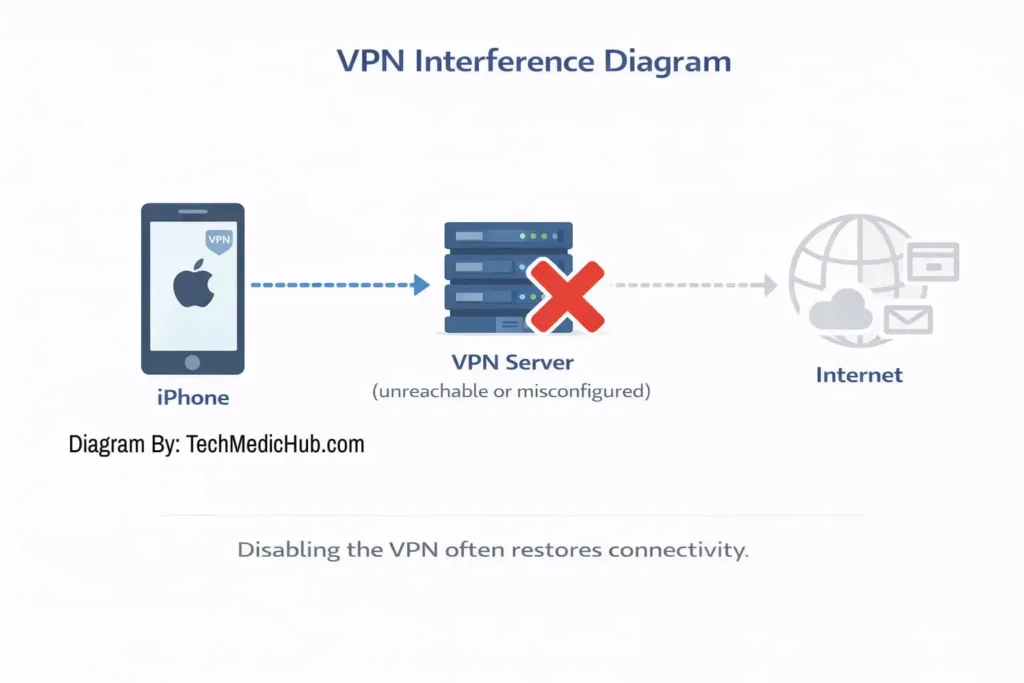
VPN apps are one of the most common causes of “connected but no internet” problems on iPhones, especially after iOS updates. The VPN may be silently intercepting traffic even when you think it is turned off, or its certificate may conflict with iOS.
Disable VPN:
- Go to Settings > General > VPN & Device Management (on some iOS versions this is Settings > VPN).
- If any VPN profile shows as Connected, tap to disconnect it.
- Also open the VPN app itself (NordVPN, ExpressVPN, Surfshark, Proton VPN, etc.) and make sure it is fully disconnected or force-quit the app.
- Test your internet.
If your internet starts working only after disabling the VPN, you may need to update or reinstall the VPN app. Several users have reported issues with VPN certificates after iOS 18 — deleting and reinstalling the VPN app from the App Store resolves this in most cases.
Check proxy settings:
- Go to Settings > Wi-Fi.
- Tap the (i) next to your network.
- Scroll down to HTTP Proxy.
- Make sure it is set to Off (unless your workplace or school specifically requires a proxy).
Fix 7 — Configure DNS Manually
If your ISP’s DNS server is slow, overloaded, or failing, websites will not load even though your iPhone is connected to WiFi. Switching to a public DNS server bypasses your ISP’s DNS entirely.
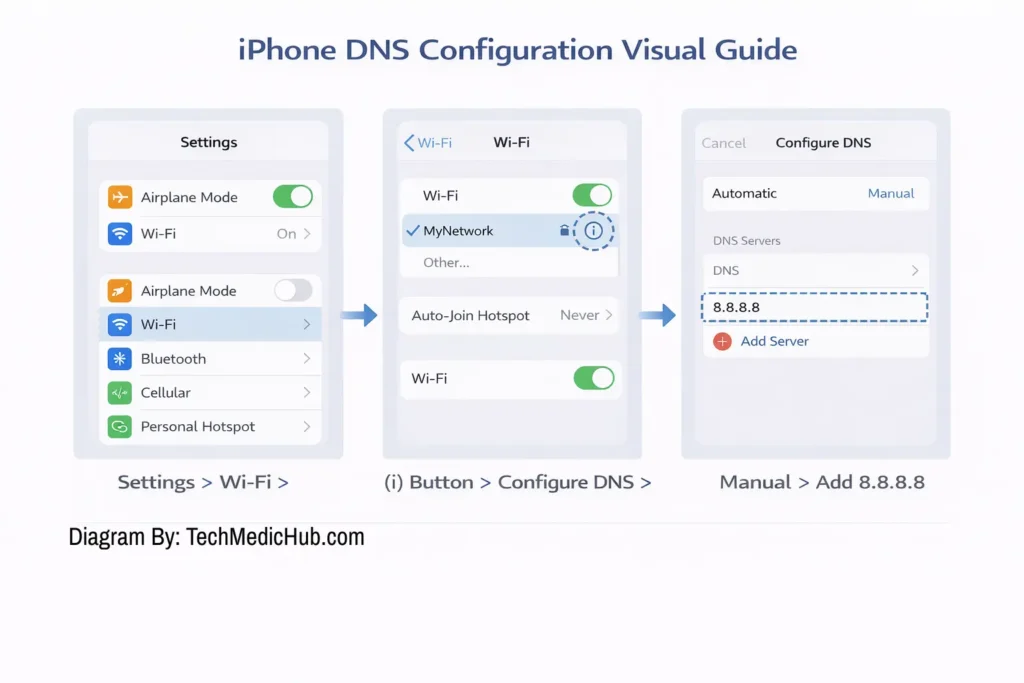
- Go to Settings > Wi-Fi.
- Tap the (i) next to your connected network.
- Scroll down and tap Configure DNS.
- Select Manual.
- Tap Add Server and enter:
- 8.8.8.8 (Google DNS)
- 8.8.4.4 (Google DNS alternate)
- If there is an existing DNS entry under “DNS Servers,” tap the red minus icon next to it to remove it.
- Tap Save in the top-right corner.
If you prefer Cloudflare’s DNS (known for speed and privacy), use 1.1.1.1 and 1.0.0.1 instead.
DNS problems are one of the most common causes of this issue across all devices. For a deeper dive into how DNS works and how to fix DNS failures, see our dedicated guide: DNS Server Not Responding.
Fix 8 — Check for Carrier Settings Update
Carrier settings updates include fixes for network connectivity, including WiFi behavior. These are separate from regular iOS updates and are easy to miss.
- Make sure your iPhone is connected to WiFi (even if limited) or cellular data.
- Go to Settings > General > About.
- Wait 10–15 seconds on this screen.
- If a carrier update is available, a pop-up will appear asking you to update. Tap Update.
If no prompt appears, your carrier settings are already up to date.
Fix 9 — Reset Network Settings
If none of the previous fixes worked, resetting all network settings gives your iPhone a completely clean slate. This removes:
- All saved WiFi networks and passwords
- VPN configurations
- Cellular settings
- Bluetooth pairings
It does not delete your photos, apps, contacts, or messages.
- Go to Settings > General > Transfer or Reset iPhone.
- Tap Reset.
- Tap Reset Network Settings.
- Enter your passcode to confirm.
- Your iPhone will restart.
- Reconnect to your WiFi network and enter the password.
- Test your internet.
Make sure you know your WiFi password before running this reset, since all saved networks will be erased.
Fix 10 — Update iOS
Apple regularly releases iOS updates that include fixes for WiFi, networking, and security. If you are running an older version, a known bug might be the cause of your connectivity issue.
- Go to Settings > General > Software Update.
- If an update is available, tap Download and Install.
- Enter your passcode and agree to the terms.
- Let the update complete. Your phone will restart.
- Reconnect to WiFi and test.
This is especially worth trying if your problem started right after an iOS update — Apple typically releases a patch within a few weeks.
Common Mistakes to Avoid
A few common mistakes can turn a simple fix into a longer troubleshooting session:
Assuming your iPhone is broken without testing other devices. Many people spend an hour troubleshooting iOS settings when the real problem is a router that needs to be restarted. Always run Fix 1 first.
Forgetting the WiFi password before resetting network settings. Reset Network Settings wipes all saved WiFi passwords. If you do not know your password, you will be locked out of your own network until you find it.
Leaving VPN apps active while troubleshooting. VPN apps can interfere with DNS and internet traffic even when you think they are “off.” Force-quit the VPN app or disconnect it fully before testing other fixes.
Setting manual DNS servers incorrectly. Double-check the numbers you type. A typo in the DNS address (like 8.8.8.9 instead of 8.8.8.8) will break everything. If your manual DNS is not working, set it back to Automatic first.
Skipping the simple fixes. Restarting the router and toggling Airplane Mode solve the problem in a huge percentage of cases. Do not skip these just because they seem too simple.
Choosing “Reset All Settings” instead of “Reset Network Settings.” These are two very different options. Reset Network Settings only clears network data. Reset All Settings wipes your wallpaper, home screen layout, display preferences, and all customizations. For this issue, you only need the network reset.
Not reconnecting to WiFi after forgetting the network. After you tap “Forget This Network,” your iPhone will not automatically reconnect. You need to manually tap the network and re-enter the password.
Frequently Asked Questions
Why does my iPhone say connected to WiFi but no internet?
Your iPhone has successfully joined the WiFi network, but its connectivity test to Apple’s server (captive.apple.com) is failing. This means the WiFi link itself works, but something between your router and the internet is broken — most commonly a DNS failure, a VPN interfering with traffic, a router that needs restarting, or an ISP outage.
Why does WiFi work on other devices but not my iPhone?
If other devices on the same network have internet but your iPhone does not, the problem is specific to your phone. The most common causes are a corrupted saved WiFi profile, a misbehaving VPN app, manual DNS settings that are no longer working, or a bug in your current iOS version. Try forgetting the WiFi network and reconnecting first, then disable any active VPN.
How do I fix WiFi connected but no internet on iOS?
The fastest path is: restart your router and iPhone, toggle Airplane Mode, disable any VPN, then forget and reconnect to the WiFi network. If those do not work, change your DNS to Google DNS (8.8.8.8) or reset network settings.
Can DNS problems cause WiFi connected but no internet?
Yes. DNS is one of the most common causes. Your iPhone needs DNS to translate website names into IP addresses. If the DNS server is slow, down, or misconfigured, no websites will load even though your connection is fine. Switching to a public DNS like Google (8.8.8.8) or Cloudflare (1.1.1.1) usually fixes this immediately.
Should I reset network settings on my iPhone?
Yes, if simpler fixes have not worked. It is safe — it only clears network-related data like WiFi passwords, VPN configurations, and Bluetooth pairings. It does not affect your photos, apps, or personal data. Just make sure you know your WiFi password before doing it.
Why does Safari say no internet connection on WiFi?
If Safari shows “no internet” while your WiFi is connected, the most likely cause is DNS failure — Safari cannot translate the website name into an IP address. Changing your DNS to 8.8.8.8 fixes this in most cases. The same issue can also occur on Android and Windows — see our guides on Android WiFi connected but no internet and Windows WiFi connected but no internet.
What does “No Internet Connection” mean on iPhone?
It means iOS detected that although your iPhone is connected to the WiFi network, it cannot reach the internet beyond the router. iOS checks this by trying to contact Apple’s connectivity test server. When that check fails, you see the “No Internet Connection” label in WiFi settings. The WiFi link is fine; the internet path is broken.
Conclusion
“WiFi connected but no internet” on iPhone almost always comes down to a few fixable causes: a router that needs restarting, a VPN interfering with traffic, a DNS problem, or a corrupted saved network profile.
The fastest path to a fix is:
- Check if other devices are also affected
- Restart your router and iPhone
- Toggle Airplane Mode on and off
- Disable any active VPN
- Forget and reconnect to the WiFi network
- Change DNS to Google DNS (8.8.8.8)
If the problem affects all devices on your network, the issue is your router or ISP — not your iPhone. In that case, restart the router and contact your ISP if the problem continues.
For a complete guide covering Android, Windows, and router fixes in one place, see our main troubleshooting article: WiFi Connected but No Internet (Android, Windows, and Router Fix Guide).