
WiFi Connected but No Internet on Windows 10 / 11: Full Fix Guide
By Team TechMedicHub
Published: April 16, 2026
Last Updated: April 16, 2026
Few things are more annoying than seeing your Windows laptop show a WiFi connection while absolutely nothing loads. The icon says you are connected. The signal strength looks fine. But every website times out, apps fail to sync, and Windows itself may show a small globe icon or a “No Internet, secured” message.
This problem is extremely common on both Windows 10 and Windows 11, and it almost always has a fixable cause. In most cases, it comes down to a DNS failure, a corrupted network setting, a stale IP address, or a router issue — all things you can resolve yourself without calling tech support.
This guide walks you through 11 fixes in order from simplest to most advanced. If you are also troubleshooting Android phones or routers, our main guide covers all devices in one place: WiFi Connected but No Internet (Android, Windows, and Router Fix Guide).
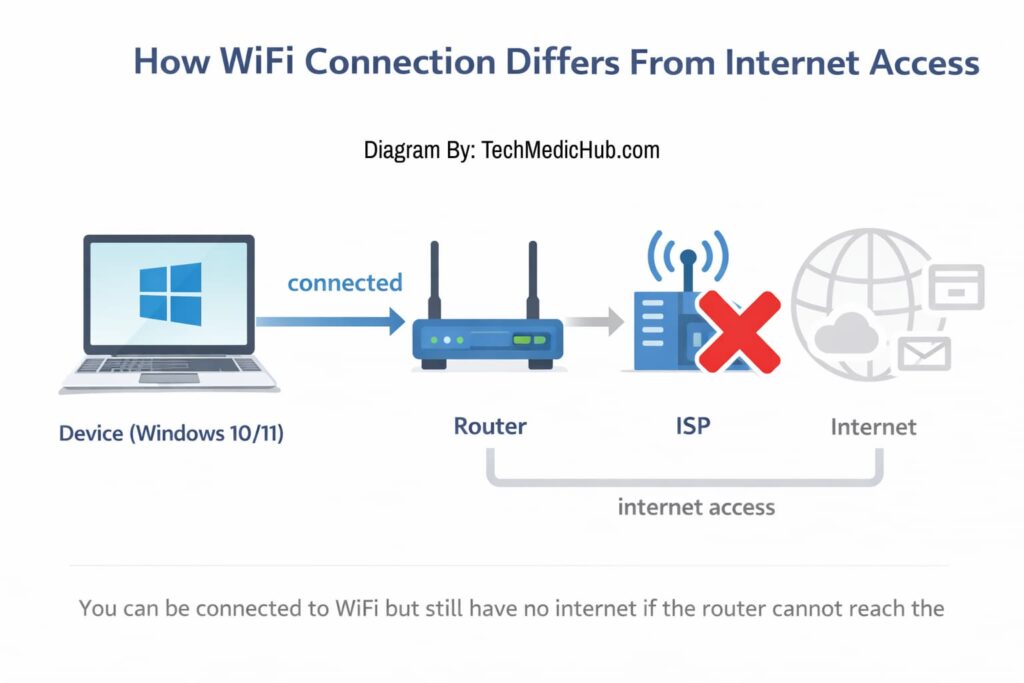
Quick Fix Summary
If your Windows laptop shows WiFi connected but no internet, the issue is usually caused by DNS errors, IP conflicts, driver problems, or router connectivity issues.
Try these quick fixes first:
- Restart your router and Windows PC
- Check if other devices have internet
- Run the Windows Network Troubleshooter
- Flush the DNS cache (
ipconfig /flushdns) - Change DNS to 8.8.8.8 or 1.1.1.1
- Reset Winsock and TCP/IP stack
- Update or reinstall your WiFi driver
Most users solve the problem within the first 3–4 fixes.
Table of Contents
Why Windows Shows “WiFi Connected but No Internet”
When Windows connects to your WiFi network, it connects to your router. That is the “connected” part. But the router is responsible for forwarding your data to the internet through your ISP. If anything in that chain breaks, Windows will report a connection to the network but no internet access.
Windows actually checks this automatically. After connecting to WiFi, it tries to reach a Microsoft connectivity test server. If that check fails, you see the “No Internet” label or a globe icon instead of the normal WiFi symbol.
Here are the most common causes:
DNS resolution problems — Windows cannot translate website names into IP addresses. This happens when the DNS cache is corrupted or the DNS server your computer is using has failed. Everything about your connection is technically working, but your PC cannot find any website.
Corrupted Winsock or TCP/IP stack — Windows handles network communication through components called Winsock and the TCP/IP stack. These can become corrupted after a failed update, a malware infection, or a power interruption. When they break, network traffic stops flowing properly even though the WiFi link is active.
Incorrect IP configuration — Your router assigns your PC an IP address through DHCP. If this process fails — or if two devices are assigned the same IP — your computer cannot send or receive data.
VPN or proxy interference — Active VPN software or leftover proxy settings can redirect your traffic through a server that is unreachable, blocking all internet access.
Outdated or faulty network drivers — WiFi adapter drivers (commonly Intel or Realtek chipsets) can break after a Windows update or become corrupted over time.
Router or ISP problems — If every device on your network has lost internet access, the problem is not your Windows PC at all. The router may need restarting, or your ISP may be experiencing an outage.
How to Fix WiFi Connected but No Internet on Windows
Work through these fixes in order. Start with the quick ones and move to the advanced solutions only if the earlier steps do not resolve the problem.
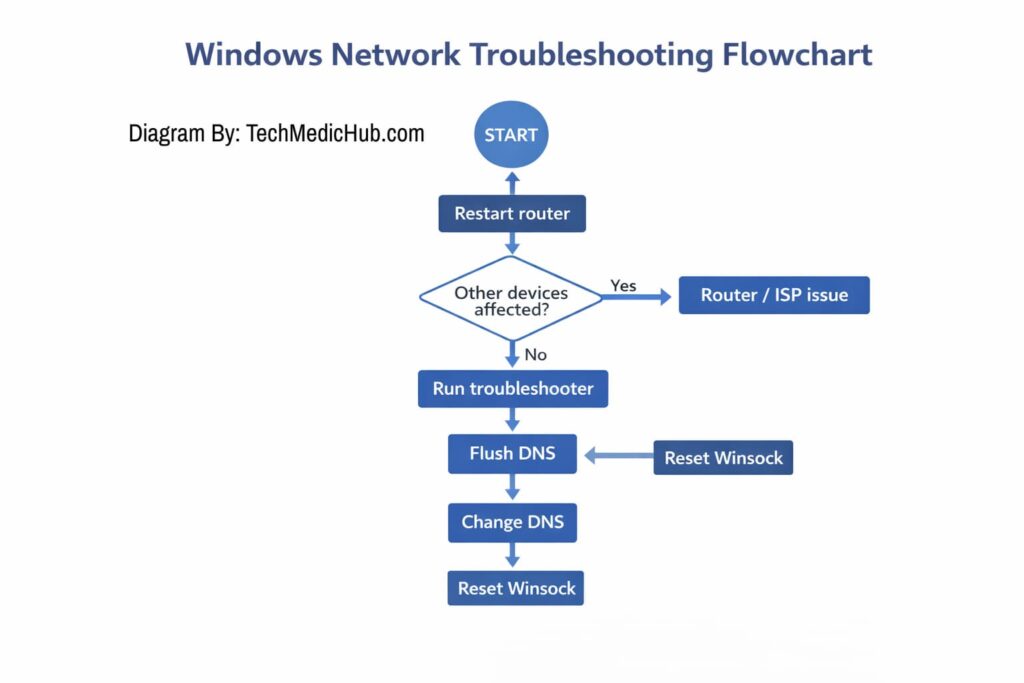
Fix 1 — Restart Your Router and Computer
This solves more “no internet” problems than any other fix. Restarting clears temporary glitches in both your router’s connection to your ISP and your computer’s network stack.
- Unplug your router from power. If you have a separate modem, unplug that too.
- Wait 30 seconds.
- Plug the modem back in and wait for its lights to stabilize (1–2 minutes).
- Plug the router back in and wait for a full boot.
- Restart your Windows PC.
- Try loading a website.
Do this before anything else. It takes two minutes and solves the issue a surprising amount of the time.
Fix 2 — Check if Other Devices Have Internet
Before spending time troubleshooting Windows settings, check whether the problem is actually with your PC or with the network itself.
Connect your phone or another device to the same WiFi network and try loading a website.
- If other devices also have no internet, the problem is your router or ISP. Focus on restarting the router or contacting your ISP.
- If other devices work fine, the problem is specific to your Windows PC. Continue with the fixes below.
This one simple check can save you from troubleshooting the wrong thing entirely.
Fix 3 — Run the Windows Network Troubleshooter
Windows has a built-in diagnostic tool that can detect and automatically fix several common network problems, including DNS failures, IP conflicts, and adapter issues.
On Windows 11:
- Go to Settings > System > Troubleshoot > Other troubleshooters.
- Find Network and Internet and click Run.
- Follow the prompts and apply any suggested fixes.
On Windows 10:
- Go to Settings > Update & Security > Troubleshoot > Additional troubleshooters.
- Select Internet Connections and click Run the troubleshooter.
The troubleshooter checks your adapter configuration, DNS settings, and connectivity to your gateway. It will not fix everything, but it catches common issues quickly and with no risk.
Fix 4 — Disable and Re-enable the WiFi Adapter
Toggling the WiFi adapter forces Windows to completely reinitialize the wireless connection, which clears stuck network states without requiring a full restart.
- Press Windows + R, type
ncpa.cpl, and press Enter. - Right-click your WiFi adapter and select Disable.
- Wait 10 seconds.
- Right-click it again and select Enable.
- Wait for it to reconnect and test your internet.
Alternatively on Windows 11, you can go to Settings > Network & Internet > Advanced network settings, find your WiFi adapter, and click Disable then Enable.
Fix 5 — Check Proxy and VPN Settings
Active VPN software or leftover proxy configurations can silently redirect your traffic through servers that no longer exist, making it look like your internet is completely dead.
Check proxy settings:
- Press Windows + R, type
inetcpl.cpl, and press Enter. - Go to the Connections tab and click LAN settings.
- Make sure Use a proxy server for your LAN is unchecked.
- Make sure Automatically detect settings is checked.
- Click OK.
Check VPN:
If you have any VPN software installed (NordVPN, ExpressVPN, Windscribe, etc.), disconnect from it temporarily and test your internet. Some VPN apps leave background processes running even when you think they are off — check your system tray for any active VPN icons.
Fix 6 — Flush the DNS Cache
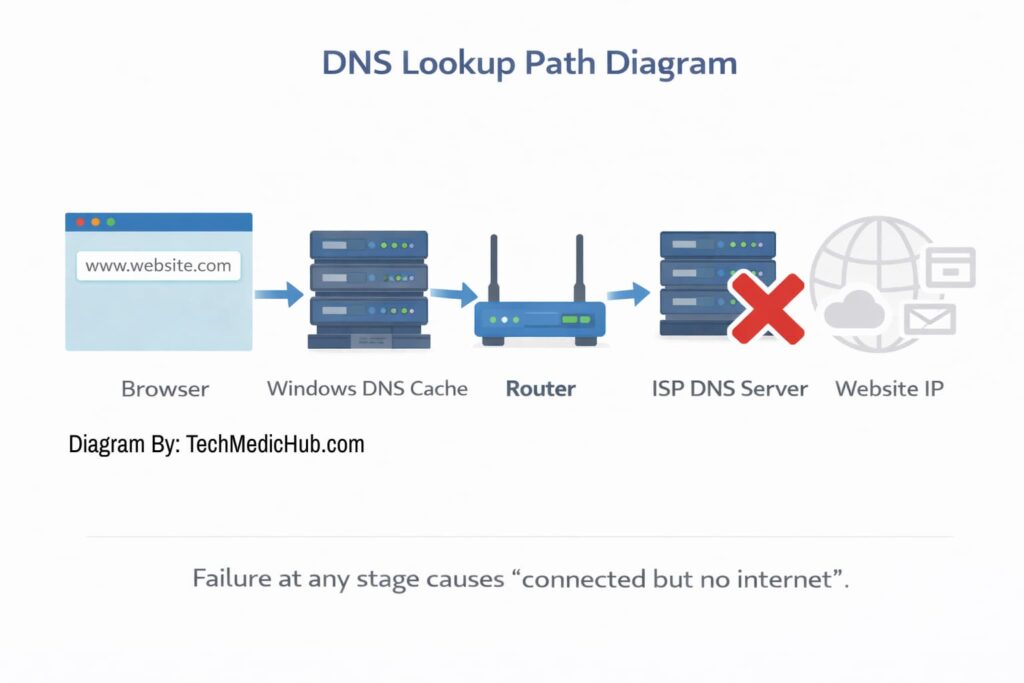
Windows stores DNS records locally to speed up browsing. If this cache becomes corrupted or contains outdated entries, your PC will fail to reach websites even though the connection itself is working.
- Search for cmd in the Start menu.
- Right-click Command Prompt and select Run as administrator.
- Type the following command and press Enter:
ipconfig /flushdns- You should see a confirmation message that the DNS resolver cache was flushed.
- Try loading a website.
DNS problems are one of the most common causes of “connected but no internet” on Windows. If you want to understand DNS issues in more depth, including how to diagnose them and when to change DNS servers, see our detailed guide on DNS Server Not Responding.
Fix 7 — Reset Winsock and TCP/IP Stack
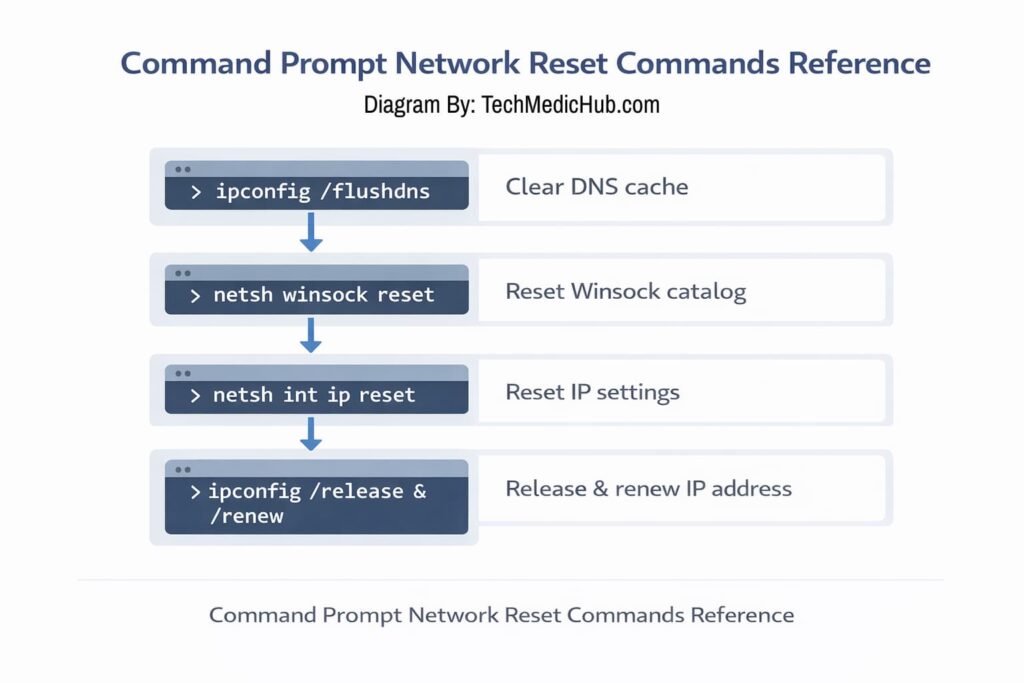
If flushing DNS alone did not fix the problem, the issue may be deeper in the Windows networking stack. Winsock handles how programs communicate over the network, and the TCP/IP stack manages how data packets are sent and received. Resetting both forces Windows to rebuild these components from scratch.
- Open Command Prompt as administrator.
- Run the following commands one at a time, pressing Enter after each:
netsh winsock reset
netsh int ip reset
ipconfig /release
ipconfig /renew- Restart your computer.
- Reconnect to WiFi and test.
Important: You must restart your computer after running these commands. They will not take effect until after a reboot. Skipping the restart is one of the most common reasons this fix appears not to work.
Fix 8 — Change Your DNS Server
By default, Windows uses whatever DNS server your ISP provides. If that server is down, overloaded, or misconfigured, you will have a WiFi connection but nothing will load. Switching to a public DNS server bypasses your ISP’s DNS entirely.
- Press Windows + R, type
ncpa.cpl, and press Enter. - Right-click your WiFi adapter and select Properties.
- Select Internet Protocol Version 4 (TCP/IPv4) and click Properties.
- Select Use the following DNS server addresses.
- Enter:
- Preferred DNS server: 8.8.8.8
- Alternate DNS server: 8.8.4.4
- Click OK, close all windows, and test your connection.
If you prefer Cloudflare DNS, use 1.1.1.1 and 1.0.0.1 instead. Both Google and Cloudflare are free, reliable, and generally faster than ISP defaults.
Fix 9 — Update or Reinstall the Network Driver
Outdated or corrupted wireless drivers are a common cause of connectivity problems, especially after a major Windows update that may introduce driver incompatibilities.
Update the driver:
- Press Windows + X and select Device Manager.
- Expand Network adapters.
- Right-click your WiFi adapter (usually named Intel, Realtek, or Qualcomm) and select Update driver.
- Choose Search automatically for drivers.
- If an update is found, install it and restart your PC.
Reinstall the driver:
If no update is available and the problem persists:
- In Device Manager, right-click the WiFi adapter and select Uninstall device.
- Check the box for Attempt to remove the driver for this device if it appears.
- Restart your computer. Windows will automatically reinstall the default driver.
For the most reliable fix, visit your laptop manufacturer’s support page (Dell, HP, Lenovo, ASUS, etc.) and download the latest WiFi driver directly from them.
Fix 10 — Perform a Full Network Reset
If none of the above steps have worked, a full network reset removes all network adapters and reinstalls them, and resets all networking components to their default settings.
On Windows 11:
- Go to Settings > Network & Internet > Advanced network settings.
- Click Network reset.
- Click Reset now and confirm.
On Windows 10:
- Go to Settings > Network & Internet > Status.
- Scroll down and click Network reset.
- Click Reset now and confirm.
Your computer will restart. After the reset, you will need to reconnect to your WiFi network and enter the password. Any VPN software or virtual network adapters will also need to be reinstalled.
This is a safe step, but it should not be your first move — save it for when the simpler fixes have not worked.
Fix 11 — Reset Network Configuration with netcfg (Last Resort)
If a full network reset through Settings still did not resolve the issue, this advanced command resets all network components at a deeper level than the Settings app can reach.
- Open Command Prompt as administrator.
- Type the following and press Enter:
netcfg -d- Restart your computer.
This command removes all network adapters and completely resets the network configuration. Use this only as a last resort after everything else has failed. You will need to reconfigure all network connections from scratch afterward.
Common Mistakes to Avoid
Before declaring the problem unfixable, make sure you are not making one of these common mistakes:
Skipping the router restart. Many people jump straight to Command Prompt commands when a simple router restart would have fixed the problem in two minutes.
Running commands without administrator privileges. Commands like ipconfig /flushdns and netsh winsock reset will fail silently or give errors if you do not run Command Prompt as administrator. Always right-click and select “Run as administrator.”
Not restarting after network reset commands. The Winsock reset, TCP/IP reset, and netcfg -d commands do not take effect until after a reboot. If you run the commands and immediately test your internet without restarting, nothing will have changed.
Leaving VPN software active. VPN apps can interfere with DNS resolution and routing even when you are “disconnected” within the app. Fully quit the VPN from the system tray during troubleshooting.
Assuming the problem is Windows when it is the router. If you did not check whether other devices have internet (Fix 2), you might spend an hour troubleshooting your PC when the real problem is a router that needs restarting or an ISP outage.
Jumping straight to a full network reset. A network reset wipes all saved WiFi passwords, VPN configurations, and adapter settings. Try the targeted fixes first — they are less disruptive and usually sufficient.
Frequently Asked Questions
Why does Windows say connected but no internet?
Windows shows “connected” because your PC has a working link to the router. But Windows also runs a connectivity check against a Microsoft server. If that check fails — due to DNS problems, IP issues, or the router not having internet — Windows labels the connection as “No Internet.” The WiFi link is fine; the break is somewhere between the router and the internet.
How do I fix WiFi connected but no internet on Windows 11?
Start with restarting your router and PC. If that does not work, run the Network and Internet troubleshooter in Settings, flush the DNS cache with ipconfig /flushdns, and try changing your DNS server to Google DNS (8.8.8.8). If the problem persists, reset Winsock and the TCP/IP stack, then restart your computer.
Why does my laptop connect to WiFi but websites will not load?
The most likely cause is a DNS failure. Your laptop connects to the router fine, but it cannot translate website names like google.com into IP addresses. Flushing the DNS cache or changing to a public DNS server like Google DNS usually fixes this. If you are also experiencing this on Android, see our guide on WiFi connected but no internet on Android.
Can DNS cause WiFi connected but no internet?
Yes. DNS failures are one of the most common causes of this problem. If the DNS server your PC uses is down, slow, or misconfigured, no websites will load even though your internet connection itself is working. Switching to Google DNS (8.8.8.8) or Cloudflare DNS (1.1.1.1) bypasses the issue immediately.
Why does the internet work on my phone but not my Windows PC?
If your phone has internet on the same WiFi network but your PC does not, the problem is specific to your Windows device. Common causes include corrupted DNS cache, outdated network drivers, leftover proxy settings, or a broken Winsock catalog. Work through the fixes in this guide starting from Fix 3.
Should I reset network settings in Windows?
A full network reset is effective but should be a later step, not your first. It removes all saved WiFi passwords, VPN configurations, and network adapter settings. Try flushing DNS, resetting Winsock, and changing DNS servers first. If those do not work, then a network reset is the right move.
What does the “No Internet, secured” message mean?
This means your PC is connected to the WiFi network with proper encryption (that is the “secured” part), but Windows detected that the connection does not have internet access. It is the same problem discussed in this guide — your PC can reach the router but not the internet beyond it.
How to Fix WiFi Connected but No Internet on Windows (Summary)
“WiFi connected but no internet” on Windows almost always comes down to one of a few causes: a DNS problem, a corrupted network component, a stale IP address, VPN or proxy interference, or a router issue.
The fastest path to a fix is:
- Restart your router and PC
- Check if other devices are also affected
- Flush the DNS cache
- Change DNS to Google DNS (8.8.8.8)
- Reset Winsock and TCP/IP, then restart
If the problem affects all devices on your network, the issue is your router or ISP — not Windows. In that case, restart the router and contact your ISP if the problem continues.
For a complete guide that also covers Android and router-specific fixes, see our main troubleshooting article: WiFi Connected but No Internet (Android, Windows, and Router Fix Guide).