
WiFi Connected but No Internet on Android: 10 Fixes That Actually Work
By Team TechMedicHub
Published: April 13, 2026
Last Updated: April 16, 2026
If your Android phone shows WiFi connected but no internet, the problem is usually caused by DNS failure, router issues, or corrupted network settings.
In most cases you can fix it in under 2 minutes by:
- toggling airplane mode
- reconnecting to the network
- restarting your router
- changing DNS servers
Below are 10 fixes that solve the issue on most Android devices.
This guide focuses specifically on Android fixes. If you are also troubleshooting Windows PCs or your router, we have a broader guide that covers all devices: WiFi Connected but No Internet (Android, Windows, and Router Fix Guide).
Table of Contents
Why Android Shows “Connected but No Internet”
To understand this problem, you need to know that connecting to WiFi and connecting to the internet are two separate things.
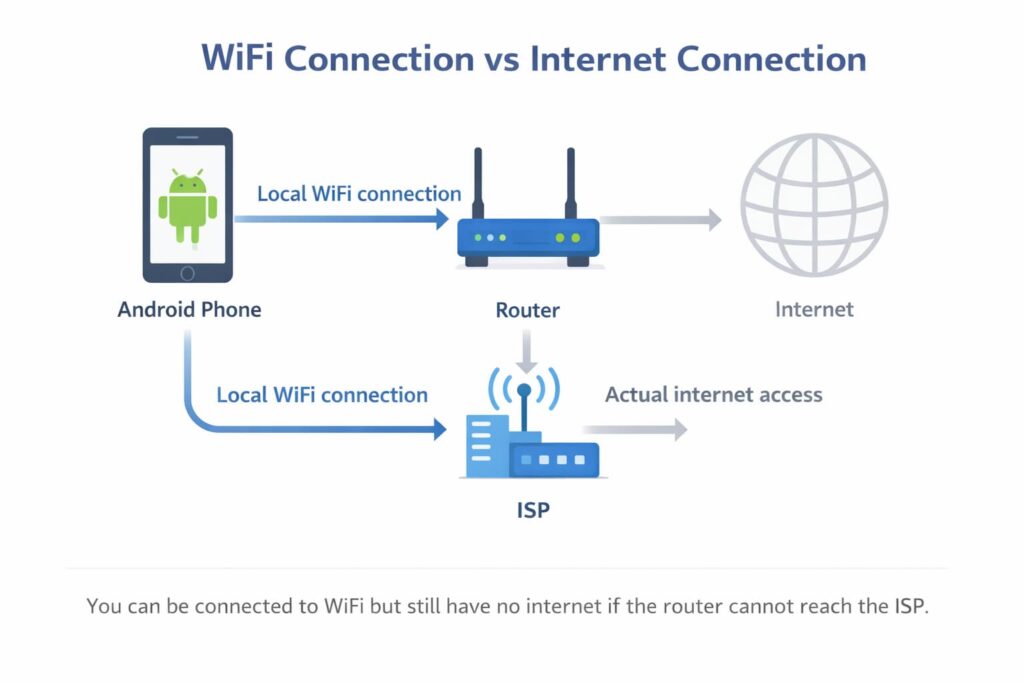
Connecting to WiFi only links your phone to the router — the router must still reach the internet. (Illustration by TechMedicHub.)
When your Android phone connects to WiFi, it connects to your router. That part is working — your phone and the router are communicating just fine. But the router is supposed to forward your requests out to the internet through your ISP. If anything breaks along that chain, your phone will show “connected” because the WiFi link is active, but it will not be able to reach websites, apps, or anything online.
Android is actually smart enough to detect this. That is why you sometimes see a small “x” or exclamation mark on the WiFi icon, or a message that says “Connected, no internet.” Your phone ran a quick check (usually by pinging a Google server), and that check failed.
Here are the most common reasons this happens:
DNS errors — Your phone cannot translate website addresses into IP addresses. Everything else about the connection works, but without DNS, no website will load.
Cached or corrupted network settings — Your phone stores the WiFi profile including IP address, DNS servers, and other settings. If this saved data becomes outdated or conflicted, your phone uses bad settings even though the network itself is fine.
Incorrect IP configuration — Your router assigns each device an IP address. If something goes wrong during that assignment — like two devices receiving the same IP — internet access breaks for one or both of them.
Router problems — The router may have lost its upstream internet connection. WiFi still broadcasts, your phone still connects, but there is no data flowing through.
ISP outage — Your internet provider’s service may be down in your area. No amount of phone troubleshooting will fix this because the problem is not on your end.
If your Android phone shows WiFi connected but no internet,
try these quick fixes first:
- Toggle airplane mode
- Forget and reconnect to WiFi
- Restart router and phone
- Disable Private DNS
- Change DNS to Google DNS
These steps fix most cases in under two minutes.
10 Fixes for WiFi Connected but No Internet on Android
Work through these fixes in order. Start with the quick ones and move to the more advanced steps only if the simpler fixes do not resolve the problem.
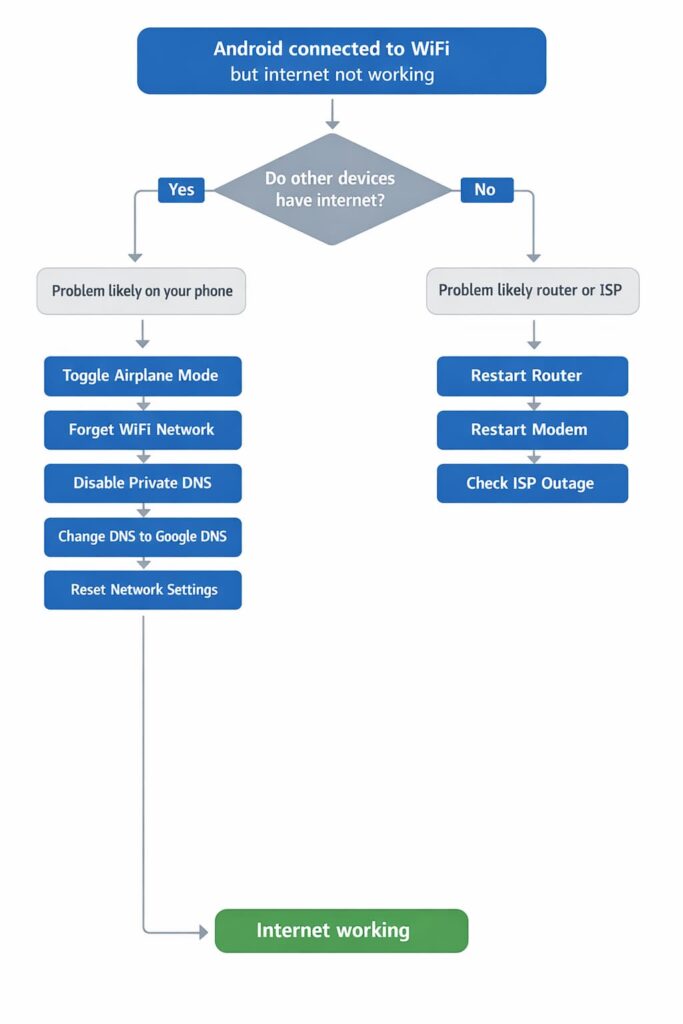
Step-by-step decision tree for fixing Android WiFi connected but no internet problems. (Illustration by TechMedicHub.)
1. Toggle Airplane Mode On and Off
This is the single fastest fix to try. Airplane mode shuts down all wireless radios on your phone — WiFi, mobile data, Bluetooth — and turning it back off forces Android to re-establish every connection from scratch.
- Swipe down from the top of your screen to open Quick Settings.
- Tap the Airplane Mode icon to turn it on.
- Wait 10 seconds.
- Tap Airplane Mode again to turn it off.
- Wait for your phone to reconnect to WiFi.
- Open a browser and try loading a website.
This clears temporary network glitches that Android cannot resolve on its own. If the problem was a minor handshake error or a stale connection, this will fix it.
2. Forget the WiFi Network and Reconnect
Your phone stores a profile for every WiFi network it connects to, including the IP address, DNS settings, and security details. Over time — or after a router change — this saved profile can become outdated or corrupted.
- Go to Settings > Network & internet > Wi-Fi (or Settings > Connections > Wi-Fi on Samsung phones).
- Tap on the WiFi network you are connected to.
- Tap Forget or Forget network.
- Wait a few seconds, then tap the same network name again.
- Enter the WiFi password and reconnect.
- Test by loading a website.
When you forget a network and reconnect, your phone requests a completely fresh set of network settings from the router. This resolves issues caused by IP conflicts or old cached DNS information.
3. Restart Your Router and Phone
If the problem is not with your phone’s settings, it might be with the router itself. Routers can lose their internet connection while continuing to broadcast WiFi. Restarting both devices clears temporary glitches on both sides.
- Unplug your router from power. If you have a separate modem, unplug that too.
- Wait 30 seconds.
- Plug the modem back in and wait for its lights to stabilize (about 1–2 minutes).
- Plug the router back in and wait for it to fully boot.
- Restart your Android phone (hold the power button, tap Restart).
- Once the phone reconnects to WiFi, test your internet.
If other devices on the same network also have no internet, the router restart will very likely fix the problem for everyone.
4. Check the Date and Time Settings
This one catches people off guard. If your phone’s date or time is wrong, secure websites (HTTPS) will reject the connection because the security certificates appear invalid. The result looks exactly like “no internet” — pages refuse to load, apps fail to sync, and downloads stall.
- Go to Settings > System > Date & time.
- Make sure Set time automatically is turned on.
- If it is already on, toggle it off and back on to force a refresh.
- Also check that Set time zone automatically is enabled.
This is especially common after a factory reset, a major system update, or when traveling across time zones.
5. Disable Private DNS Temporarily
Android 9 and later include a Private DNS feature that encrypts DNS queries for better privacy. While this is generally a good thing, it can cause internet failures if the Private DNS server you have configured is unreachable, blocked by your WiFi network, or conflicting with your router’s DNS settings.
- Go to Settings > Network & internet > Private DNS (on some phones this is under More connection settings or Advanced).
- If it is set to a specific provider hostname, change it to Automatic or Off.
- Tap Save.
- Test your internet connection.
If your internet starts working after disabling Private DNS, the server you were using was the problem. You can switch to a different provider (like dns.google or one.one.one.one) or leave it on Automatic, which lets your phone decide.
Some public WiFi networks and corporate networks block encrypted DNS traffic entirely. In those cases, Private DNS needs to be set to Off while you are on that network.
6. Change DNS to Google DNS
If your ISP’s default DNS servers are slow, overloaded, or failing, your phone will connect to WiFi but fail to load any websites. Switching to Google’s public DNS servers bypasses your ISP’s DNS entirely.
On Android 9 and later, the easiest method is through Private DNS:
- Go to Settings > Network & internet > Private DNS.
- Select Private DNS provider hostname.
- Enter: dns.google
- Tap Save and test your connection.
On older Android versions, or if you want to set DNS per-network:
- Go to Settings > Wi-Fi and long-press your connected network.
- Tap Modify network and then Advanced options.
- Change IP settings from DHCP to Static.
- In the DNS fields, enter:
- DNS 1: 8.8.8.8
- DNS 2: 8.8.4.4
- Tap Save and test.
Note: When using Static IP settings, you also need to fill in the IP address, gateway, and subnet mask fields. These should already be populated — just make sure you do not clear them.
For a deeper explanation of DNS issues and how they cause internet failures, see our detailed guide on DNS Server Not Responding: How to Fix It.
7. Disable Battery Optimization for WiFi
Some Android phones aggressively manage background processes to save battery, which can interfere with the WiFi connection. This is especially common on phones from Xiaomi, Huawei, Samsung, and other brands with custom battery management.
- Go to Settings > Apps (or Settings > Battery > Battery optimization).
- Find your browser or the app that is not loading data.
- Tap on it and select Don’t optimize or Unrestricted.
You can also check if your phone has a WiFi sleep mode:
- Go to Settings > Wi-Fi > Advanced (or Wi-Fi preferences).
- Look for Keep Wi-Fi on during sleep and set it to Always.
Not all phones have this setting, but if yours does, make sure WiFi is set to stay active at all times.
8. Reset Network Settings
If nothing so far has worked, resetting your phone’s network settings gives it a completely clean slate. This clears all saved WiFi passwords, Bluetooth pairings, VPN configurations, and mobile data settings.
- Go to Settings > System > Reset options (on Samsung: Settings > General management > Reset).
- Tap Reset Wi-Fi, mobile & Bluetooth (or Reset network settings).
- Confirm the reset.
- After the reset completes, reconnect to your WiFi network and enter the password.
- Test your internet connection.
This does not delete your photos, apps, messages, or personal files. It only resets network-related settings. However, you will need to re-enter all your WiFi passwords, so make sure you know them before proceeding.
9. Check If Your ISP Is Down
If you have tried restarting the router and multiple devices have no internet, the issue might be with your internet service provider.
- Switch to mobile data on your phone (turn off WiFi temporarily).
- Search for “[your ISP name] outage” or check your ISP’s social media pages.
- You can also use a site like downdetector.com to see if others in your area are reporting problems.
- Call your ISP’s support line and ask if there is a known outage.
If it is an ISP outage, there is nothing you can fix on your end. These usually resolve within a few hours.
10. Update Your Android System
Android system updates often include fixes for WiFi and networking bugs. If you are running an older version, a known bug might be causing your connectivity issue.
- Go to Settings > System > System update (on Samsung: Settings > Software update).
- Tap Check for updates.
- If an update is available, download and install it.
- After the phone restarts, reconnect to WiFi and test.
Also check for app updates in the Google Play Store, particularly for apps that manage network connections, VPNs, or browser apps.
Advanced: When the Problem Is DNS
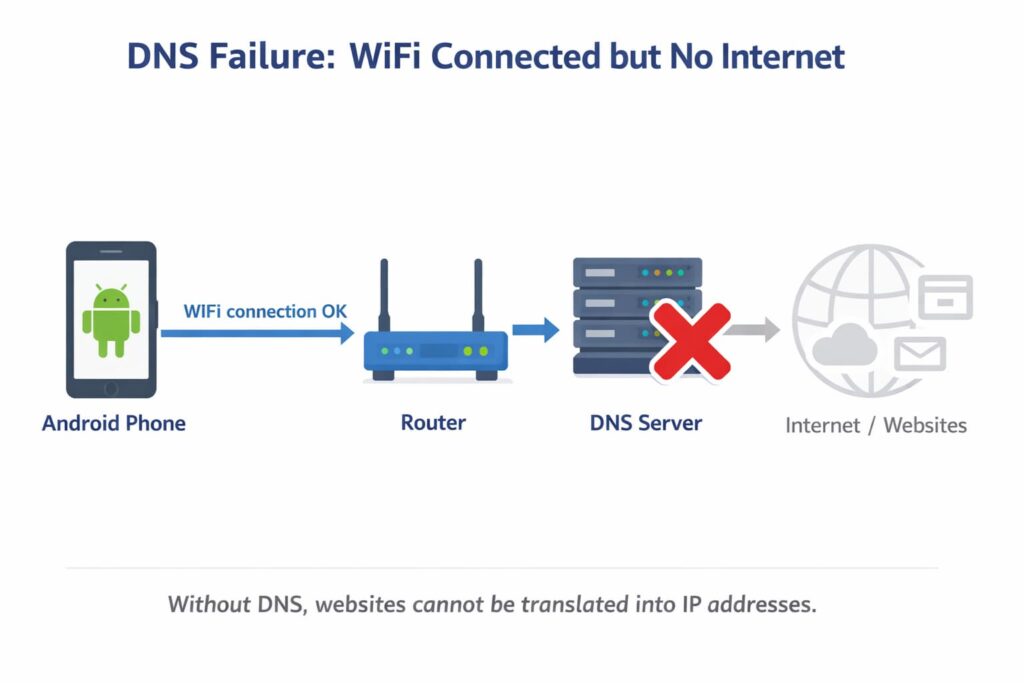
DNS failure example: your phone connects to the router but DNS requests fail, preventing websites from loading. (Illustration by TechMedicHub.)
A significant number of “WiFi connected but no internet” cases on Android are actually DNS failures. Your phone can reach the router, and the router can reach the internet, but the DNS server responsible for translating website names into IP addresses is not responding.
The symptoms are specific: WiFi appears connected, some apps might partially work (apps that use cached data or direct IP connections), but browsers cannot load any websites.
If you suspect DNS is the issue, you can confirm it by trying to load a website using its IP address instead of its name. For example, try navigating to http://142.250.72.14 in your browser — this is a Google IP address. If it loads but google.com does not, DNS is definitely the problem.
We cover this problem in full detail, including fixes for Android, Windows, and routers, in our dedicated guide: DNS Server Not Responding: How to Fix It (Windows, Android, Router Guide).
Frequently Asked Questions
Why does my Android say connected but no internet?
It means your phone has a working connection to the router, but the router is not delivering internet access. This can be caused by DNS failures, ISP outages, corrupted network settings on your phone, or the router losing its upstream internet connection. The WiFi link itself works fine — the break is somewhere between the router and the internet.
Why does WiFi work on other devices but not on my phone?
If other devices on the same network have internet but your Android phone does not, the problem is specific to your phone. The most common causes are a corrupted saved network profile, stale DNS cache, incorrect Private DNS settings, or an IP address conflict. Try forgetting the WiFi network, reconnecting, and if that does not work, reset your phone’s network settings.
Does resetting network settings delete my data?
No. Resetting network settings only clears WiFi passwords, Bluetooth pairings, VPN configurations, and mobile data preferences. It does not touch your photos, apps, contacts, messages, or any other personal data. You will just need to re-enter your WiFi passwords afterward.
Should I change DNS on my Android phone?
If your internet problems are caused by DNS failures, changing to a public DNS like Google DNS (dns.google) or Cloudflare (one.one.one.one) can fix the issue and often makes browsing faster and more reliable. There is no downside to trying it, and you can always switch back. On Android 9 and later, you can set this through Settings > Network & internet > Private DNS.
Why does my WiFi keep disconnecting and reconnecting on Android?
This is a different but related issue. Frequent disconnections are usually caused by weak signal strength, WiFi sleep settings that turn off the radio to save battery, or interference from other networks on the same channel. Check your phone’s battery optimization settings and make sure WiFi is set to stay on during sleep.
Conclusion
Most “WiFi connected but no internet” problems on Android come down to a few fixable causes: a temporary glitch in your network connection, a corrupted saved WiFi profile, DNS problems, or a router that needs restarting.
The fastest fixes to try in order are:
- Toggle airplane mode
- Forget and reconnect to the WiFi network
- Restart your router and phone
- Change DNS to Google DNS
- Reset network settings
If the problem affects every device on your network, the issue is with your router or your ISP — not your Android phone. In that case, restart the router first, and if that does not help, check with your ISP for outages.
For a complete guide covering Android, Windows, and router fixes together, see our main troubleshooting article: WiFi Connected but No Internet (Android, Windows, and Router Fix Guide).