
WiFi Connected but No Internet (Android, Windows, and Router Fix Guide)
By Team TechMedicHub
Published: April 12, 2026
Last Updated: April 16, 2026

Your device says it is connected to WiFi, but nothing loads. No websites, no apps, no updates. This is one of the most common and frustrating network problems that happens on Android phones, Windows laptops, and home routers.
The good news is that this problem almost always has a simple fix. In this guide, you will learn exactly why your WiFi shows “connected” but has no internet access, and how to fix it step by step on any device.
This guide covers Android, Windows, and router fixes so you can solve the issue regardless of your device. (For iOS users, check our guide on WiFi Connected but No Internet On iPhone. Macbook tutorial coming soon)
Table of Contents
Why Does WiFi Say Connected but No Internet?
Before jumping into fixes, it helps to understand why this happens. When your device connects to WiFi, it connects to your router. But that does not necessarily guarantee that the router is sending data to the internet.
Here are the most common causes:
DNS problems — Your device cannot translate website names (like google.com) into IP addresses. If the DNS lookup fails, websites cannot load even though WiFi is connected. See our full guide on DNS Server Not Responding: How to Fix It (Windows, Android, Router Guide).
Router or modem issues — This is the most common root cause of internet problems, but also the most fixable. Your router may have lost its connection to your ISP (Internet Service Provider). The WiFi signal works fine locally, but there is no internet coming through.
Device network settings — Incorrect IP configuration, outdated network drivers, or corrupted network settings on your phone or computer can block internet access even when WiFi is connected.
ISP outage or problems — Sometimes the issue is not on your end at all. Your internet service provider may be experiencing a service disruption in your area.
IP address conflicts — Two devices on the same network may have been assigned the same IP address, which causes connectivity failures for one or both devices.
How to Fix WiFi Connected but No Internet
Below are step-by-step fixes organized by device type. Start with the section that matches your device, then move to the router section if the problem continues.
What to Try First (Fastest Fix Order)
- Restart router and modem
- Toggle airplane mode (mobile)
- Forget and reconnect WiFi
- Run network troubleshooter (Windows)
- Change DNS settings
Android Fixes
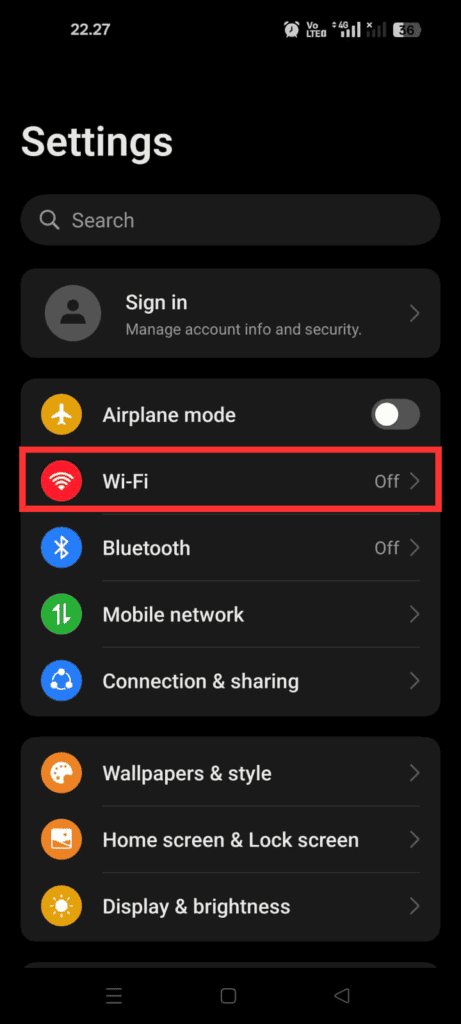
If your Android phone shows WiFi connected but no internet, try these fixes in order.
1. Toggle Airplane Mode On and Off
Most of us have done this and it is one of the fastest way to reset your phone’s network connections.
- Swipe down from the top of your screen to open Quick Settings.
- Tap the Airplane Mode icon to turn it on.
- Wait 10 seconds.
- Tap Airplane Mode again to turn it off.
- Wait for your phone to reconnect to WiFi and test your internet.
2. Forget and Reconnect to the WiFi Network
Sometimes the saved network profile becomes corrupted. Removing it and reconnecting forces a fresh connection.
- Go to Settings > Network & internet > Wi-Fi (or Settings > Connections > Wi-Fi on Samsung devices).
- Tap on your connected WiFi network name.
- Tap Forget or Forget network.
- Now tap on the same network again and enter your WiFi password.
- Test your internet connection.
3. Check the Date and Time Settings
Incorrect date and time settings can cause SSL certificate errors and block internet access.
- Go to Settings > System > Date & time.
- Make sure Set time automatically is turned on.
- If it is already on, toggle it off and on again.
4. Reset Network Settings
This clears all saved WiFi passwords, Bluetooth pairings, and mobile data settings. Use this when other fixes do not work.
- Go to Settings > System > Reset options.
- Tap Reset Wi-Fi, mobile & Bluetooth (or Reset network settings).
- Confirm and wait for your phone to restart.
- Reconnect to your WiFi network and test.
Note: We have a more detailed guide covering Android-specific WiFi troubleshooting, including problems with specific Android versions and manufacturer-specific issues: WiFi Connected but No Internet on Android: 10 Fixes That Actually Work
Windows Fixes
If your Windows 10 or Windows 11 PC shows WiFi connected with no internet access, follow these steps.
1. Run the Windows Network Troubleshooter
Windows has a built-in tool that can detect and fix common network problems automatically.
On Windows 11:
- Go to Settings > System > Troubleshoot > Other troubleshooters.
- Find Network and Internet and click Run.
- Follow the prompts and apply any suggested fixes.
On Windows 10:
- Go to Settings > Update & Security > Troubleshoot > Additional troubleshooters.
- Select Internet Connections and click Run the troubleshooter.
2. Disable and Re-enable the WiFi Adapter
This forces Windows to reset the wireless adapter without restarting your PC.
- Press Windows + R, type
ncpa.cpl, and press Enter. - Right-click your WiFi adapter and select Disable.
- Wait 10 seconds.
- Right-click it again and select Enable.
- Wait for it to reconnect and test your internet.
3. Release and Renew Your IP Address
If your PC has a stale or conflicting IP address, this will request a fresh one from your router.
- Open Command Prompt as administrator (search for “cmd”, right-click, and select “Run as administrator”).
- Type the following commands one at a time, pressing Enter after each:
ipconfig /release
ipconfig /renew- Wait for the process to finish and test your connection.
4. Update or Reinstall the WiFi Driver
Outdated or corrupted wireless drivers are a common cause of connectivity problems on Windows.
- Press Windows + X and select Device Manager.
- Expand Network adapters.
- Right-click your wireless adapter and select Update driver.
- Choose Search automatically for drivers.
- If no update is found, right-click the adapter again and select Uninstall device.
- Restart your PC. Windows will reinstall the driver automatically.
Note: We cover Windows-specific WiFi problems in greater depth in a dedicated guide, including fixes for driver issues across different laptop brands and Windows versions: WiFi Connected but No Internet Windows 10/11. For other Windows versions, check our full guide on Windows Fixes.
Router and Modem Fixes
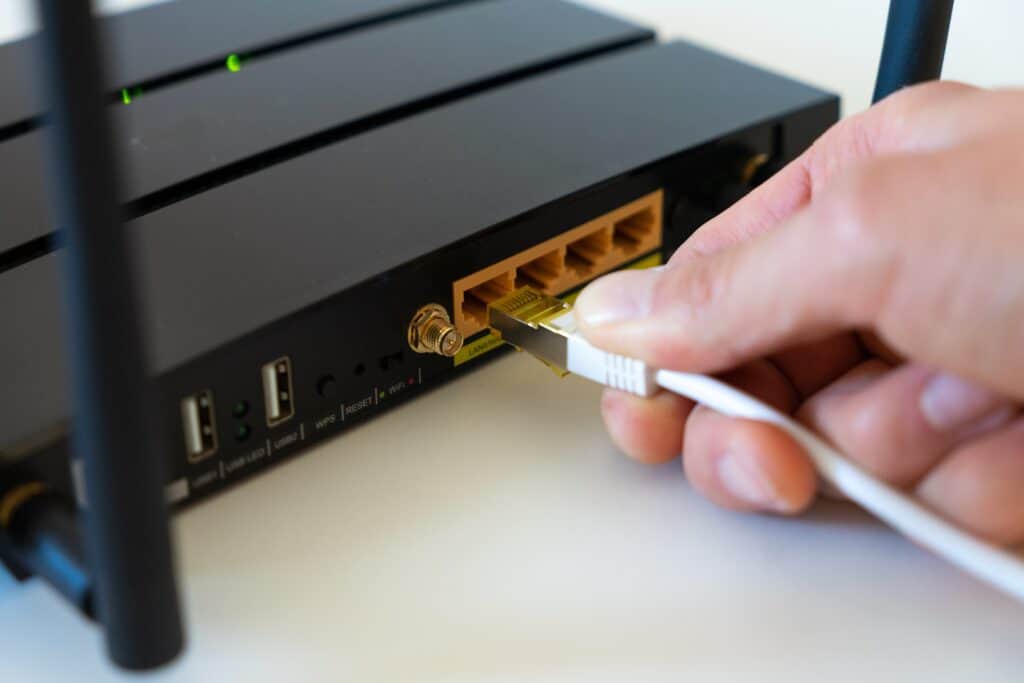
If multiple devices have the same problem, the issue is almost certainly with your router, modem, or ISP.
1. Restart Your Router and Modem
This is the single most effective fix for “WiFi connected but no internet” problems. A simple restart clears the router’s memory, refreshes its connection to your ISP, and resolves most temporary glitches.
- Unplug your router from power. If you have a separate modem, unplug that too.
- Wait at least 30 seconds. This gives the hardware time to fully discharge.
- Plug in the modem first and wait for all its lights to stabilize (about 1–2 minutes).
- Then plug in the router and wait for it to fully boot up.
- Reconnect your device and test your internet.
2. Check If Other Devices Have Internet
Before spending time troubleshooting, check if the problem is with one device or all devices.
- If only one device has no internet — the problem is with that device’s settings. Focus on the Android or Windows fixes above.
- If all devices have no internet — the problem is with your router, modem, or ISP.
3. Check Your Router’s Internet Light
Most routers have an LED labeled “Internet” or “WAN.”
- If this light is off or red, your router is not receiving internet from your modem or ISP.
- If this light is green or white, the internet connection is reaching your router, and the problem may be on the device side.
4. Contact Your ISP
If restarting the router does not work and the internet light is off, the problem may be on your ISP’s end.
- Check your ISP’s website or social media for outage reports (use mobile data to do this).
- Call your ISP’s support line and ask if there is a known outage in your area.
- Ask them to refresh or re-provision your connection remotely.
Advanced Fixes
If the basic steps above did not solve your problem, try these more technical solutions.
Flush Your DNS Cache
If you’re seeing errors like DNS Server Not Responding, you may need to flush your DNS cache. We explain this issue in detail in our guide on how to fix DNS server not responding.
Your device stores a local copy of DNS records. If this cache becomes corrupted or outdated, it can prevent websites from loading even when the connection is working.
On Windows:
- Open Command Prompt as administrator.
- Run the following commands one at a time:
ipconfig /flushdns
netsh winsock reset
netsh int ip reset- Restart your computer.
On Android:
Android does not have a direct DNS flush command. Instead, toggling airplane mode or resetting network settings (covered above) clears the DNS cache.
Change Your DNS Server to Google DNS
Your ISP’s default DNS servers can be slow, overloaded, or malfunctioning. Switching to Google’s public DNS (8.8.8.8 and 8.8.4.4) often fixes “connected but no internet” problems instantly.
On Windows:
- Press Windows + R, type
ncpa.cpl, and press Enter. - Right-click your WiFi adapter and select Properties.
- Double-click Internet Protocol Version 4 (TCP/IPv4).
- Select Use the following DNS server addresses.
- Enter:
- Preferred DNS server: 8.8.8.8
- Alternate DNS server: 8.8.4.4
- Click OK, close all windows, and test your connection.
On Android:
- Go to Settings > Network & internet > Private DNS (on Android 9 and later).
- Select Private DNS provider hostname.
- Enter: dns.google
- Tap Save and test your connection.
On your router:
- Log into your router’s admin panel (usually at 192.168.0.1 or 192.168.1.1).
- Find the DNS settings (often under WAN or Internet settings).
- Change the DNS to 8.8.8.8 and 8.8.4.4.
- Save and restart the router.
Changing DNS at the router level applies to every device on your network at once.
Reset the Windows Network Stack
If nothing else works on your Windows PC, resetting the entire network stack forces Windows to rebuild all networking components from scratch.
- Open Command Prompt as administrator.
- Run the following commands:
netsh winsock reset
netsh int ip reset
ipconfig /release
ipconfig /renew
ipconfig /flushdns- Restart your computer.
- Reconnect to WiFi and test.
This is the most thorough network reset available on Windows without reinstalling the operating system.
Frequently Asked Questions

Why does my phone say WiFi connected but no internet?
This usually means your phone is connected to the router, but the router itself does not have an active internet connection. It can also be caused by incorrect DNS settings, an IP address conflict, or corrupted network settings on your phone. Try toggling airplane mode first, then forget and reconnect to the WiFi network.
Why does only one device have no internet while others work fine?
If other devices on the same network are working, the problem is specific to your device. Common causes include outdated network drivers (on Windows), incorrect date and time settings (on Android), or a corrupted network profile. Try forgetting the WiFi network and reconnecting, or resetting your device’s network settings.
Will resetting network settings delete my data?
No. Resetting network settings on Android or Windows only clears WiFi passwords, Bluetooth pairings, and VPN settings. It does not delete your photos, apps, files, or any other personal data.
What does changing DNS to 8.8.8.8 do?
DNS (Domain Name System) translates website names like google.com into IP addresses your device can connect to. By default, your device uses your ISP’s DNS servers. Changing to 8.8.8.8 (Google Public DNS) uses Google’s servers instead, which are often faster and more reliable. This can fix “connected but no internet” issues caused by DNS failures on your ISP’s side.
How do I know if the problem is my router or my ISP?
Restart your router and modem. If the internet light on your router stays off or red after restarting, the problem is likely with your ISP. You can also connect your computer directly to the modem with an ethernet cable. If you get internet through the direct connection but not through the router, your router is the problem.
Does restarting the router really fix internet problems?
Yes, in most cases. Routers are small computers that run continuously. Over time, they can develop memory leaks, overloaded connection tables, or stale DHCP leases. Restarting the router clears all of these issues and forces it to re-establish a fresh connection to your ISP.
Conclusion
“WiFi connected but no internet” almost always comes down to one of a few causes: a DNS problem, a router that needs restarting, a device with corrupted network settings, or an ISP outage.
Start with the simplest fixes first… (Guess what) Exactly! The things that usually do which are, restarting your router, toggling airplane mode on your phone, or running the network troubleshooter on Windows. If those do not work, move on to changing your DNS server or resetting your network settings.
In most cases, one of the steps in this guide will get you back online.
Goodluck! – TechMedicHub’s Team
If these fixes do not solve your issue, you may have a more specific problem. Check our detailed guides:
• DNS Server Not Responding: How to Fix It (Windows, Android, Router Guide)
• WiFi Not Working on Android (Advanced Fixes)
• Windows Internet Connection Problems